DNS Preparation
In this workshop, each participant will be provided with a temporary Cloudflare account, linked to the email address used during registration. Along with the account, a domain will be assigned in the following format: \<slug\>.spxlab.com.
To simulate a real-world scenario, we have also prepared a server hosting a dummy website. Your task here is to configure the DNS settings of your assigned domain to point to this server using A record.
Configure A record
-
Log in to the temporary Cloudflare account assigned to you.
-
Locate your domain (e.g.,
<slug>.spxlab.com) in the Cloudflare dashboard. -
Go to DNS -> Records and click Add record

-
Add an A record in the DNS configuration:
- Name:
@(or the provided subdomain if specified) - Type:
A - Value: Use the IP address provided during the session
- Proxy Status:
Enabled(orange cloud)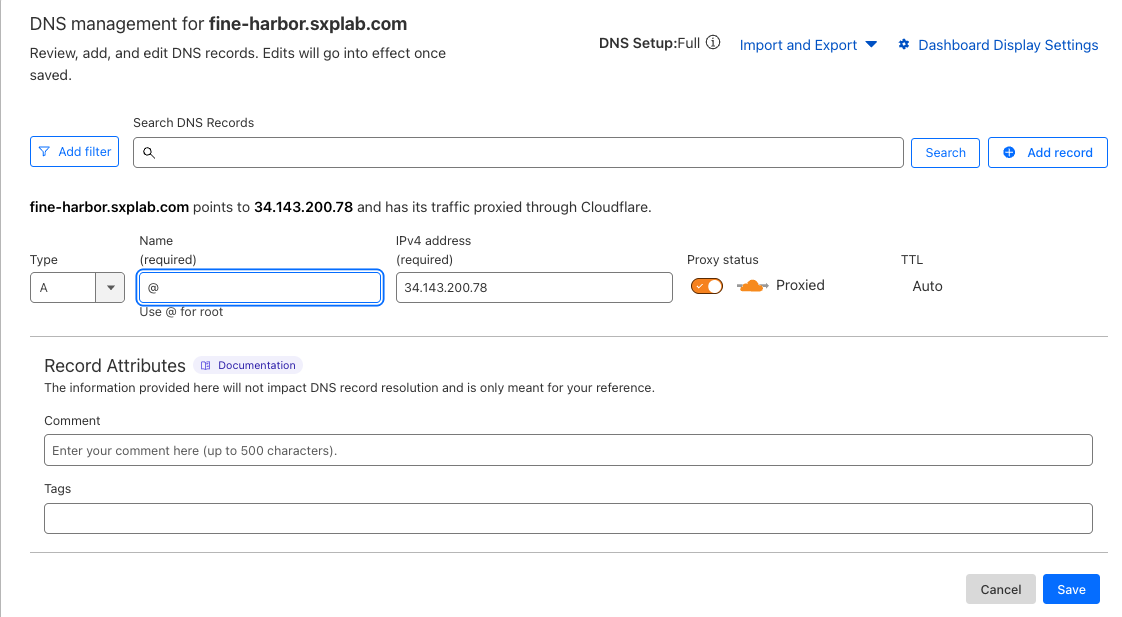
- Save changes and verify the domain resolves to the dummy website hosted on the server.
SSL/TLS Preparation
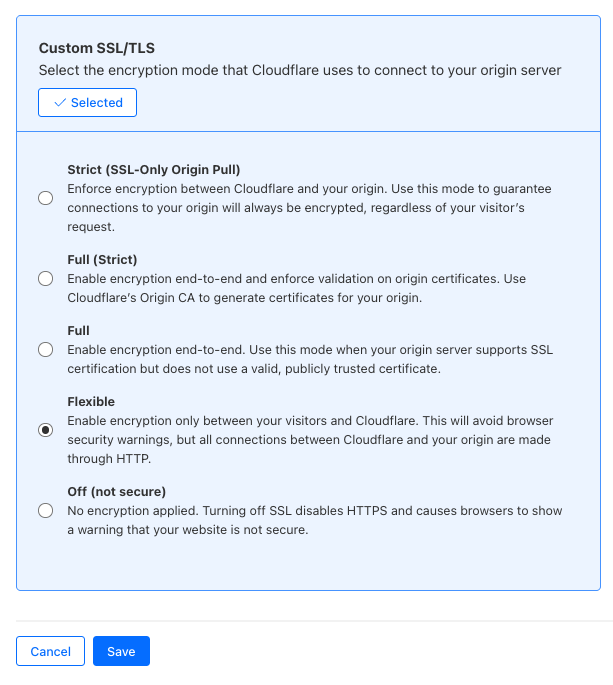
In this scenario, since the origin only accepet port 80, so we need to change the encryption mode from "Full" to "Flexible". For common use case, Cloudflare always recommend all user to use at least "Full" encryption mode.
Changing encryption mode
-
Log in to the temporary Cloudflare account assigned to you.
-
Locate your domain (e.g.,
<slug>.spxlab.com) in the Cloudflare dashboard. -
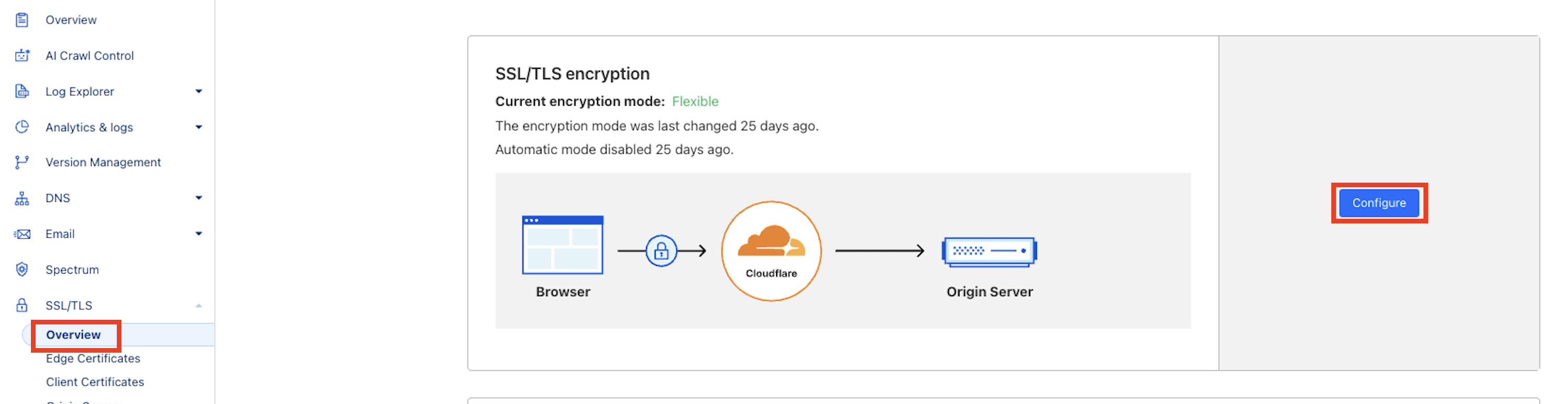
Go to SSL/TLS -> Overview and click Configure
-
Change the mode from "Full" to "Flexible" then save
With all this change, now you can access to the Website