Rules Setup
Cloudflare Rules provide a flexible way to control how requests and responses are processed on your application.
Instead of relying only on defaults, you can customize behaviors such as:
- Adding or modifying HTTP headers
- Rewriting URLs or query strings
- Adjusting cache or origin settings
- Applying security or performance policies
Unlike older Page Rules (which are being phased out), Cloudflare Rules are more powerful, modular, and scalable.
They allow fine-grained control using conditions, filters, and actions — helping you adapt Cloudflare’s edge behavior to your application’s unique needs.
Task
In this section we will explore features which allow changes to settings & behavior, and configure some examples with Transform Rules.
If you are familiar with Page Rules you may be wondering why they are missing. While these are valid, they are an older part of our stack which will be sunset in due course. As a matter of best practice, use one of the new Rules options to suit your needs.
Why
It is common to wish to change defaults and have custom settings best suited to your application. Cloudflare Rules allow you to make adjustments to requests and responses, configure custom settings, and trigger specific actions for matching requests.
There are many options which can be configured, so please feel free to explore settings beyond these exercises. Before proceeding with the tasks, please briefly familiarize yourself with the Rules documentation above.
Configuration Steps
Using template as starting point
When creating Rules, Cloudflare provides prebuilt templates you can use as a starting point.
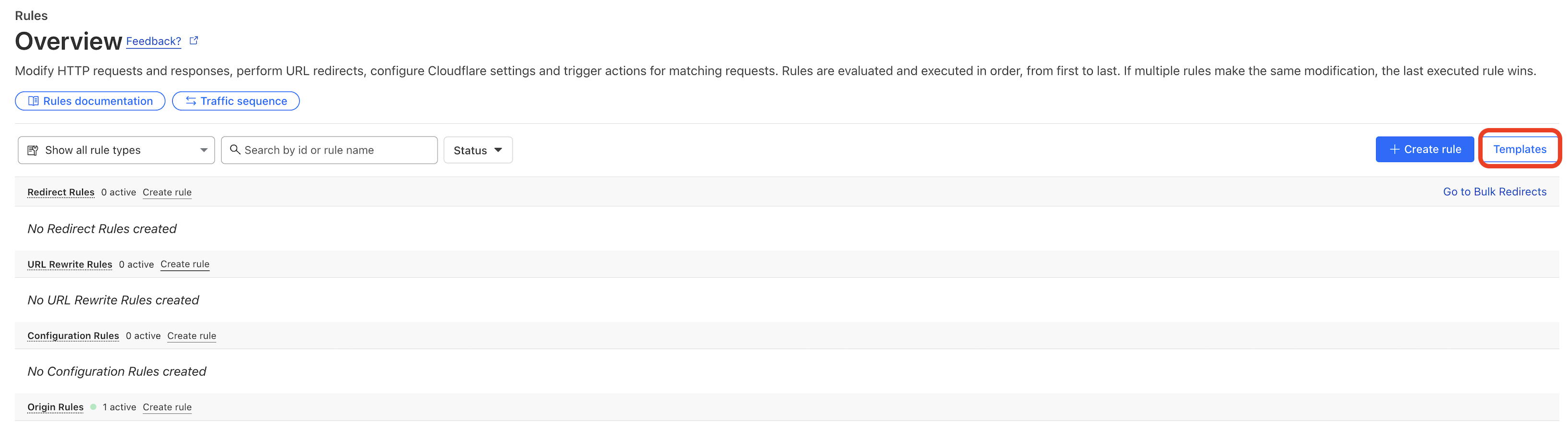 :::
1. Create a transform rule that adds a header to all responses
Transform Rules allow you to adjust the URI path, query string, and HTTP headers of requests and responses on the Cloudflare global network.
In this task, we will create a rule to add the common security header X-Frame-Options to all responses. We’ll then see how we can make this easier with Managed Transforms.
In the Cloudflare Dashboard go to Rules ‣ Overview, then scroll down to Response Header Transform Rules and click Create rule.
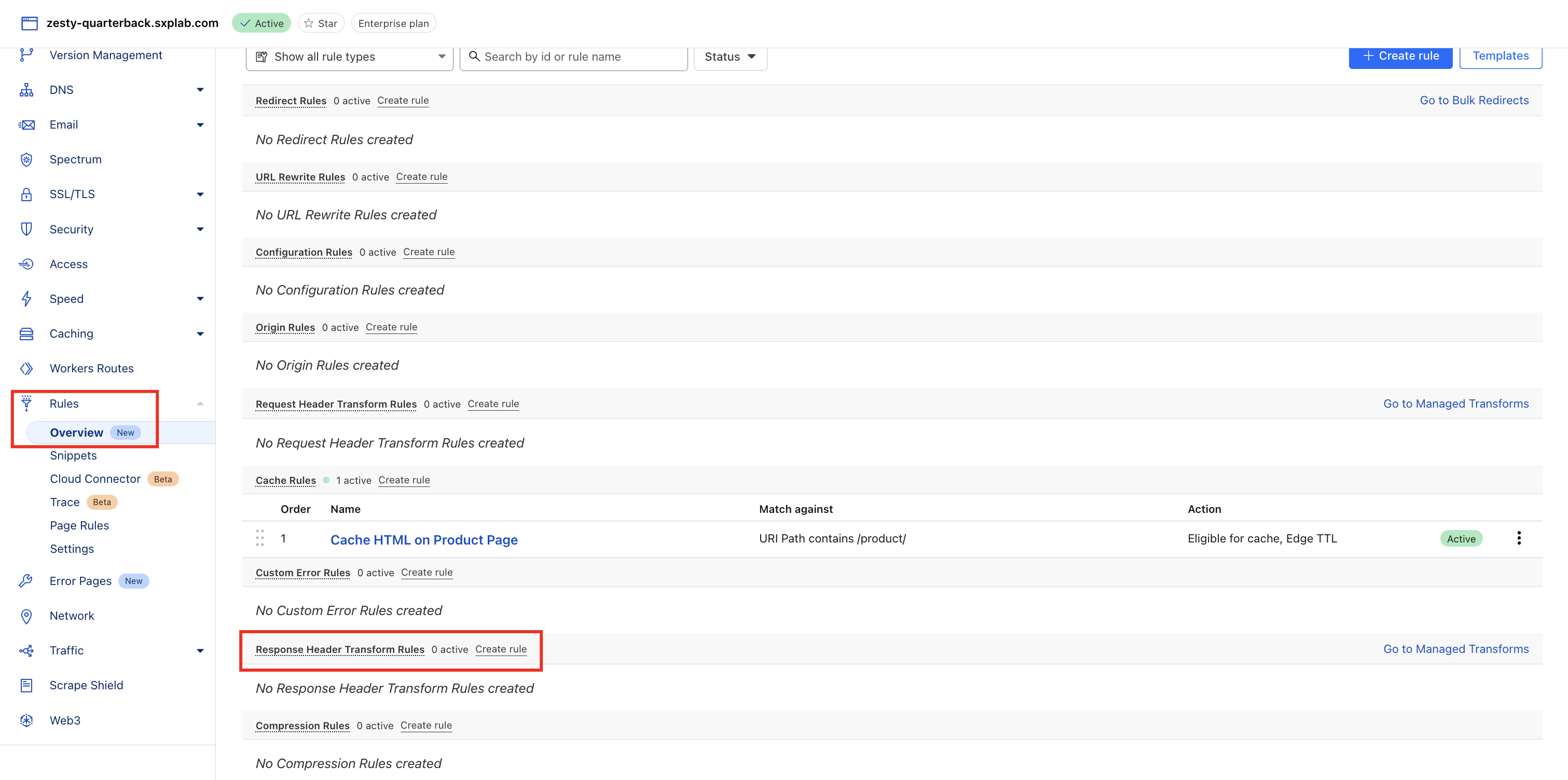
Here you can see some predefined templates for common use cases:
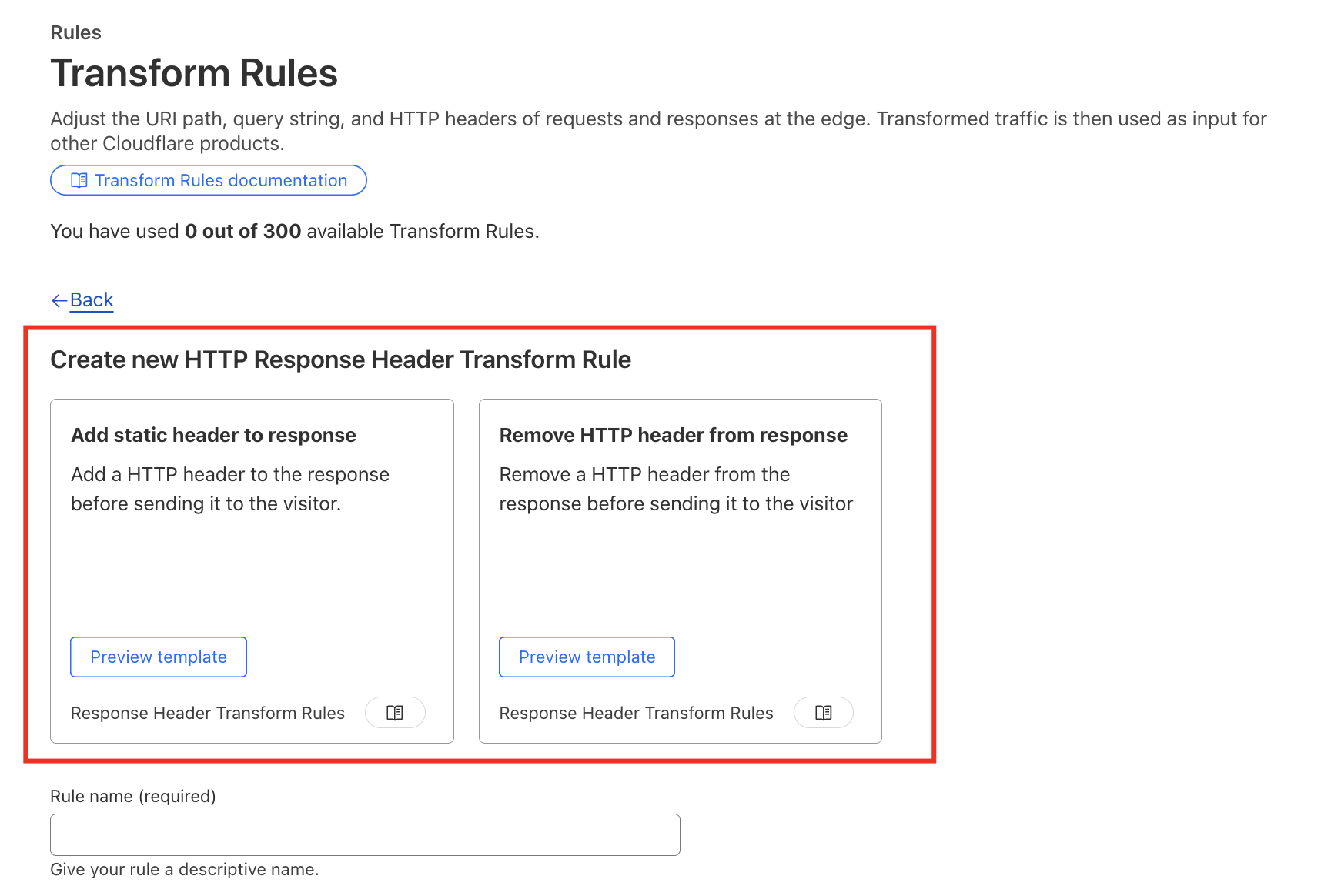
We could use the template for adding a static header, but let's instead create a new rule from scratch. Scroll down under the templates and build a new rule with the following values:
- Set Rule name to something descriptive, such as “Add X-Frame-Options”
- Set If incoming requests match… to All incoming requests
- Set the Then… criteria to…
- Add static
- Set the Header name to X-Frame-Options
- Set the Value to SAMEORIGIN Feel free to add more other arbitrary headers if you wish.
Your rule should look like this:
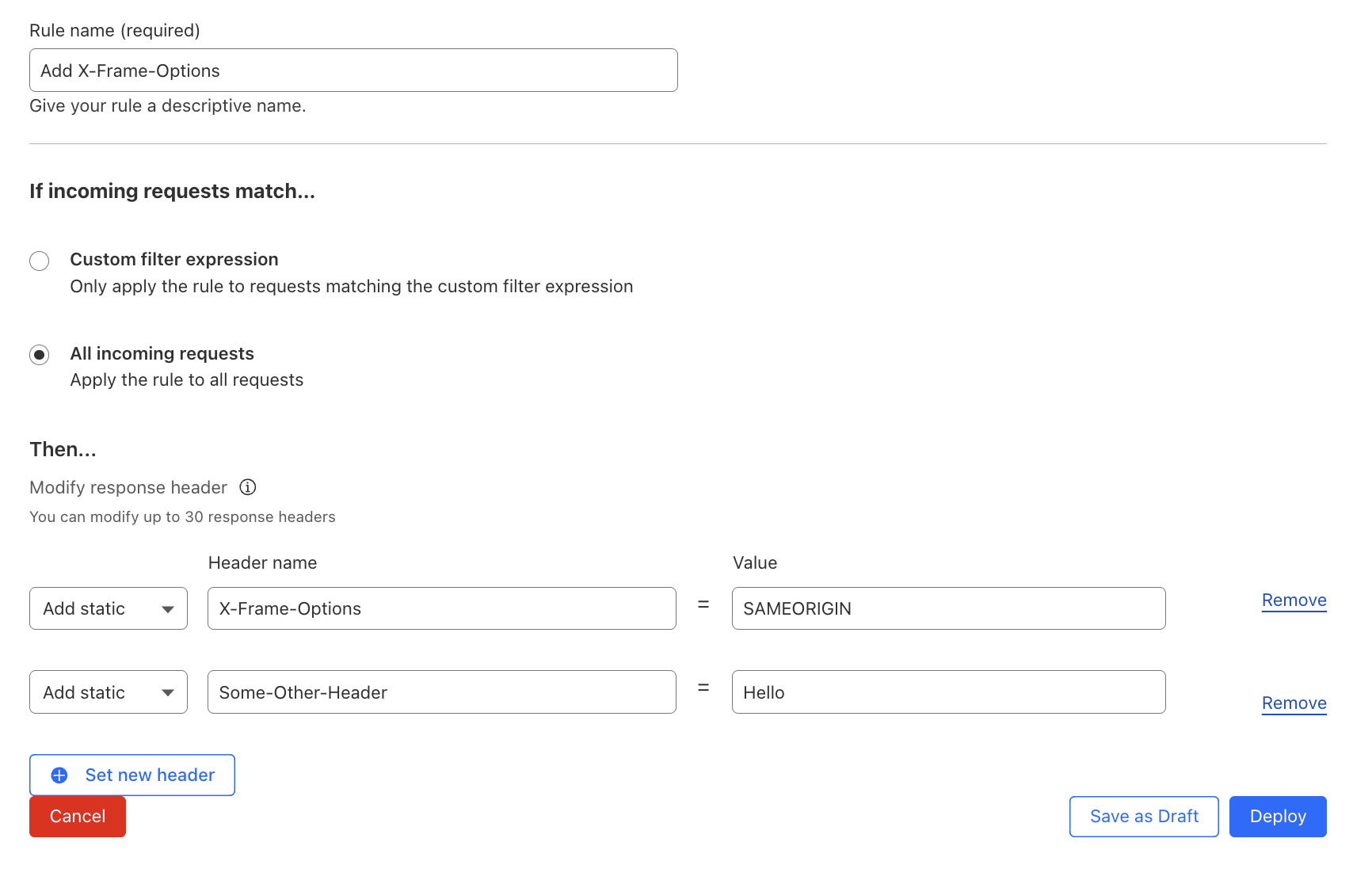
Click Deploy.
2. Verify header in a response
- curl
- Browser
Check the HTTP response headers using curl:
$ curl -I "https://<slug>.sxplab.com/product/generic-mouse-and-keyboard/"
< HTTP/2 200
< date: Mon, 25 Aug 2025 09:07:07 GMT
< content-type: text/html; charset=UTF-8
< cf-ray: 9749eff03f28e4fc-JHB
< cache-control: public, max-age=14400
< last-modified: Monday, 25-Aug-2025 09:07:07 GMT
< cf-cache-status: MISS
< expires: Mon, 25 Aug 2025 13:07:07 GMT
< some-other-header: Hello        <----- new header
< x-frame-options: SAMEORIGIN     <----- new header
< server: cloudflare
< server-timing: cfReqDur;dur=155.835
Check the HTTP response headers using Developer Tools on your browser:
https://<slug>.sxplab.com/product/generic-mouse-and-keyboard/
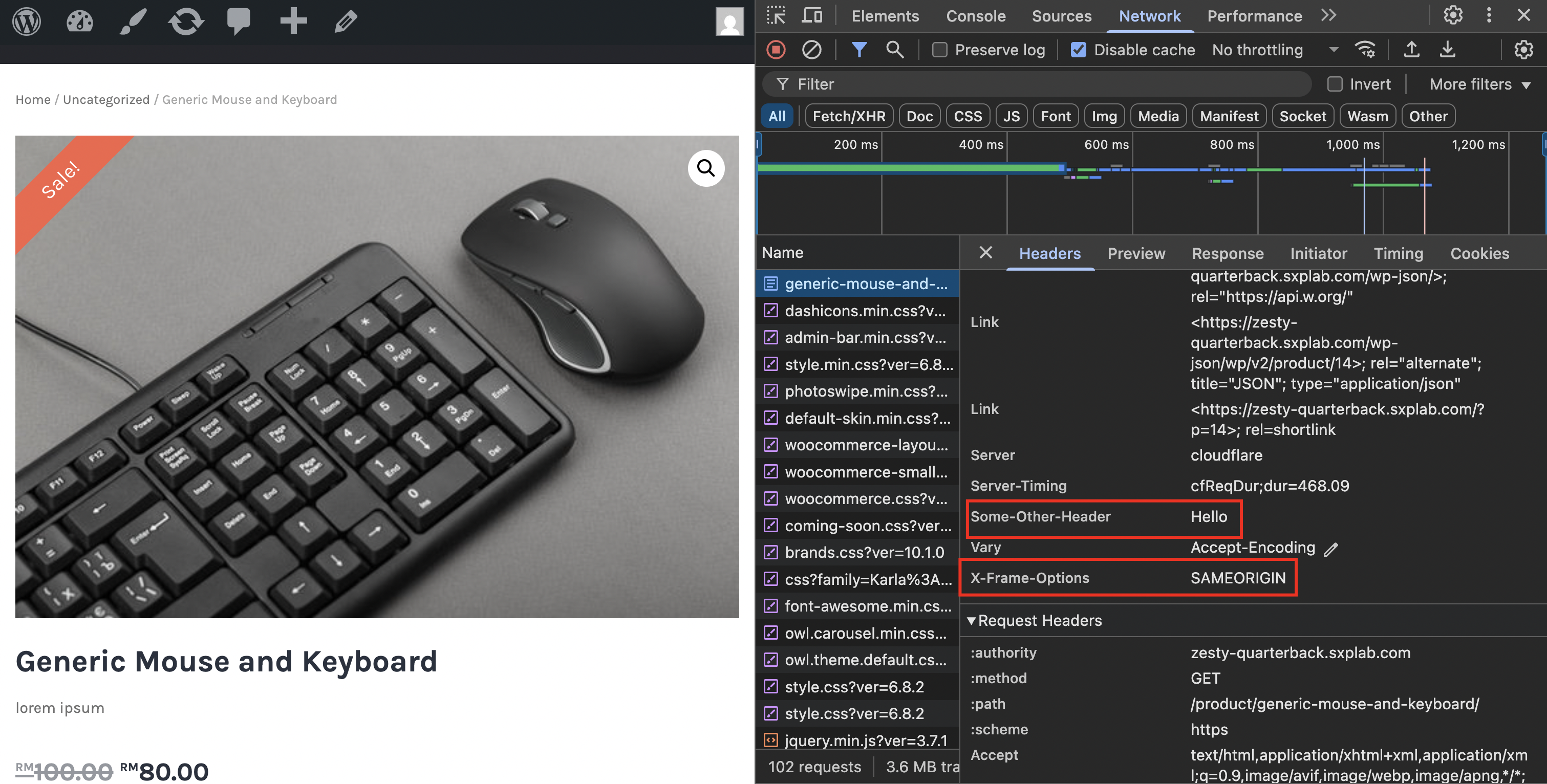
You can see that the x-frame-options and any other headers you defined are now present.
3. Add more Security Headers with Managed Transforms
Now that you are familiar with how you can add headers, let’s add some more!
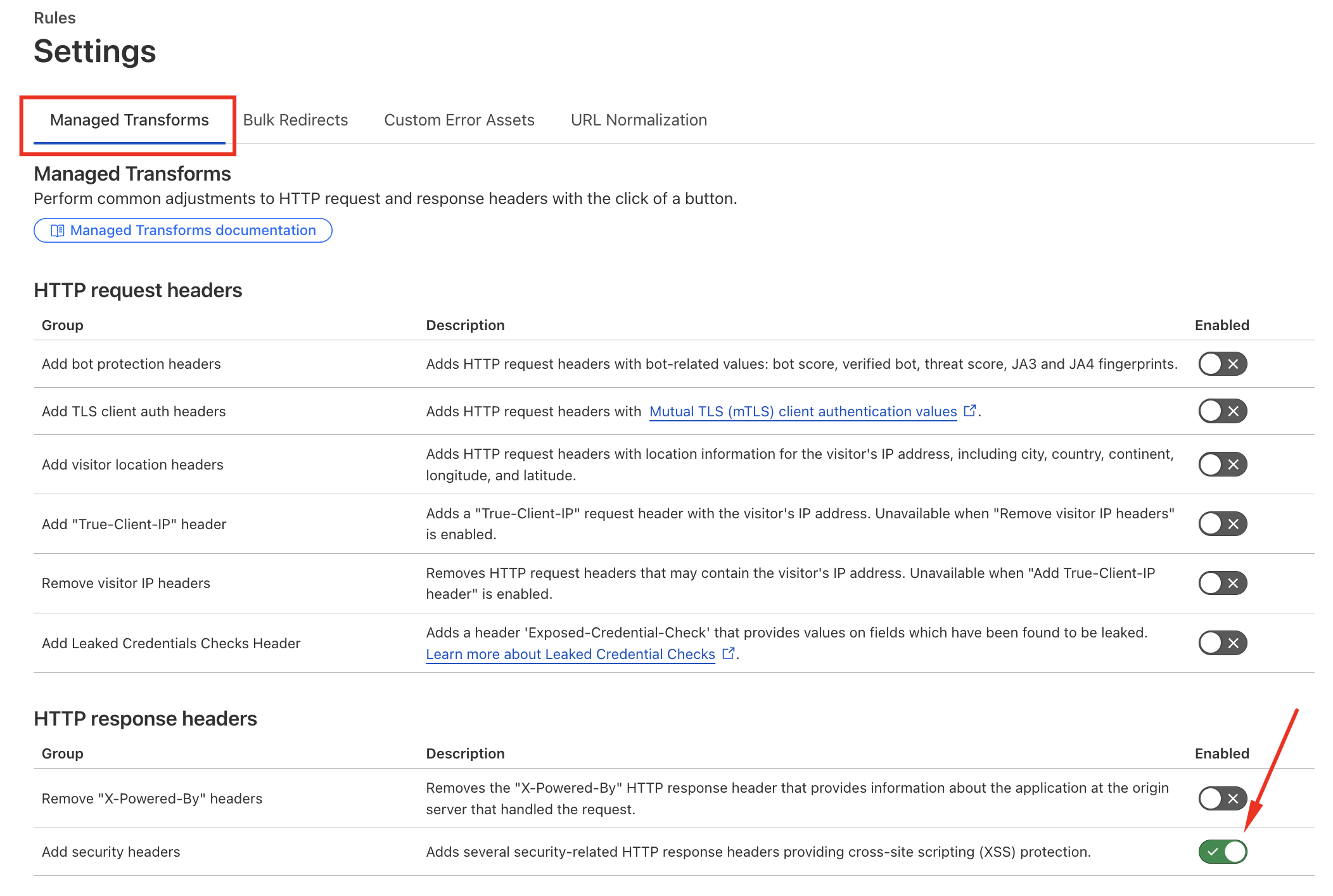
Firstly, Disable the rule you just deployed. Then navigate to Rules ‣ Overview and under Response Header Transform Rules select Manage Response Header Transform Rules.

Switch to the Managed Transforms tab. As can be seen, there are several options to choose from here, based on common scenarios. Go ahead and enable Add security headers within the HTTP response headers section.
- curl
- Browser
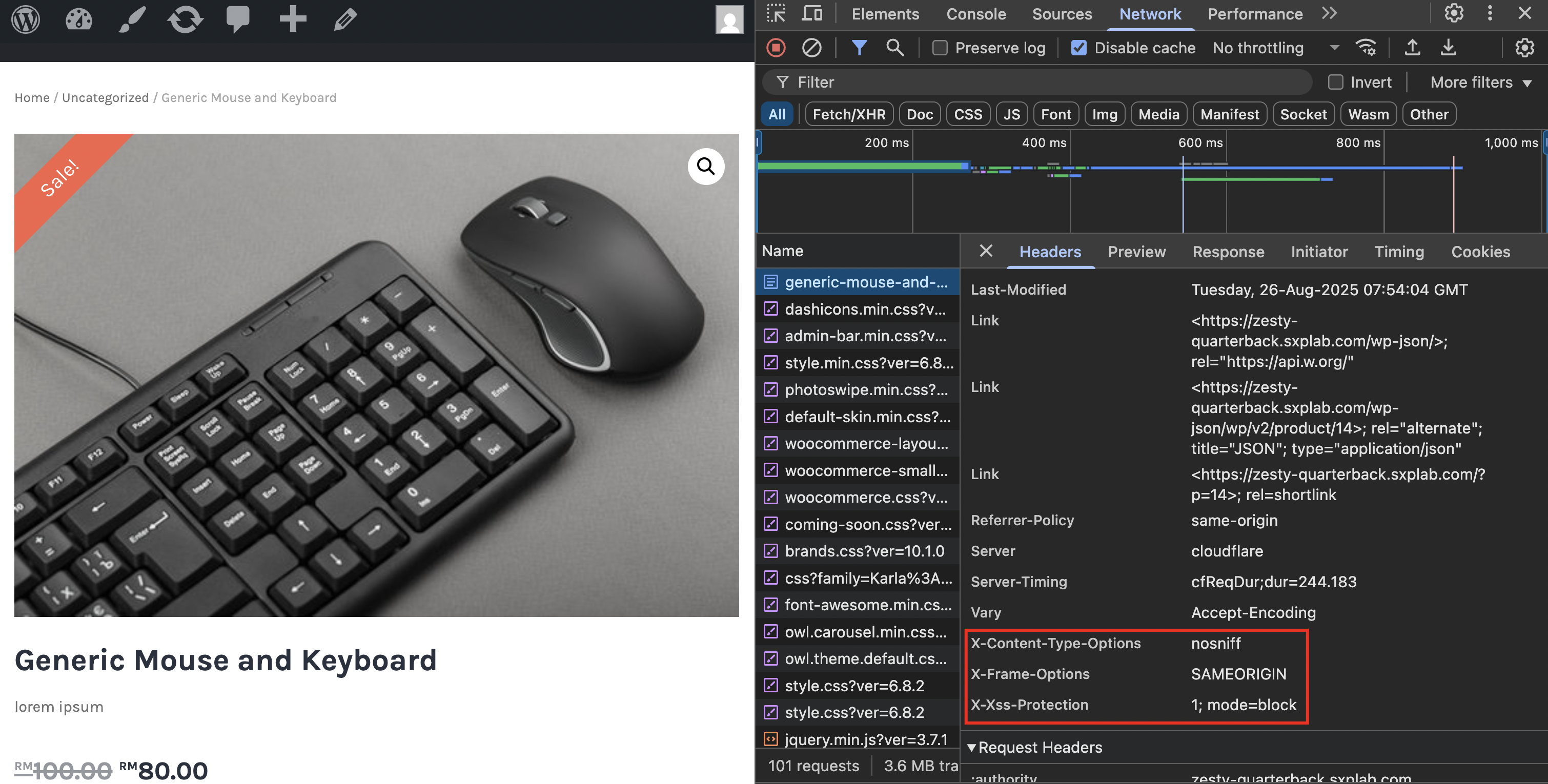
Now repeat your curl - note the presence of the new headers like x-xss-protection:
$ curl -I "https://<slug>.sxplab.com/product/generic-mouse-and-keyboard/"
< HTTP/2 200
< date: Mon, 25 Aug 2025 09:15:45 GMT
< content-type: text/html; charset=UTF-8
< cf-ray: 9749fc984d64e4fc-JHB
< cache-control: public, max-age=14400
< last-modified: Monday, 25-Aug-2025 09:15:39 GMT
< cf-cache-status: HIT
< age: 6
< expires: Mon, 25 Aug 2025 13:15:45 GMT
< expect-ct: max-age=86400, enforce
< referrer-policy: same-origin
< x-content-type-options: nosniff     <---Security Headers
< x-frame-options: SAMEORIGIN         <---Security Headers
< x-xss-protection: 1; mode=block     <---Security Headers
< server: cloudflare
< server-timing: cfReqDur;dur=14.322
Now refresh the page - note the presence of the new headers like x-xss-protection:
4. Add a URL Rewrite Rule
Sometimes it is desirable to show a page different to what is in the URL. Now we will explore the URL rewrite functionality to show the /product/generic-mouse-and-keyboard/ page when requesting /product/generic-headset/.
Navigate to Rules ‣ Overview and under URL Rewrite Rules select Create rule.
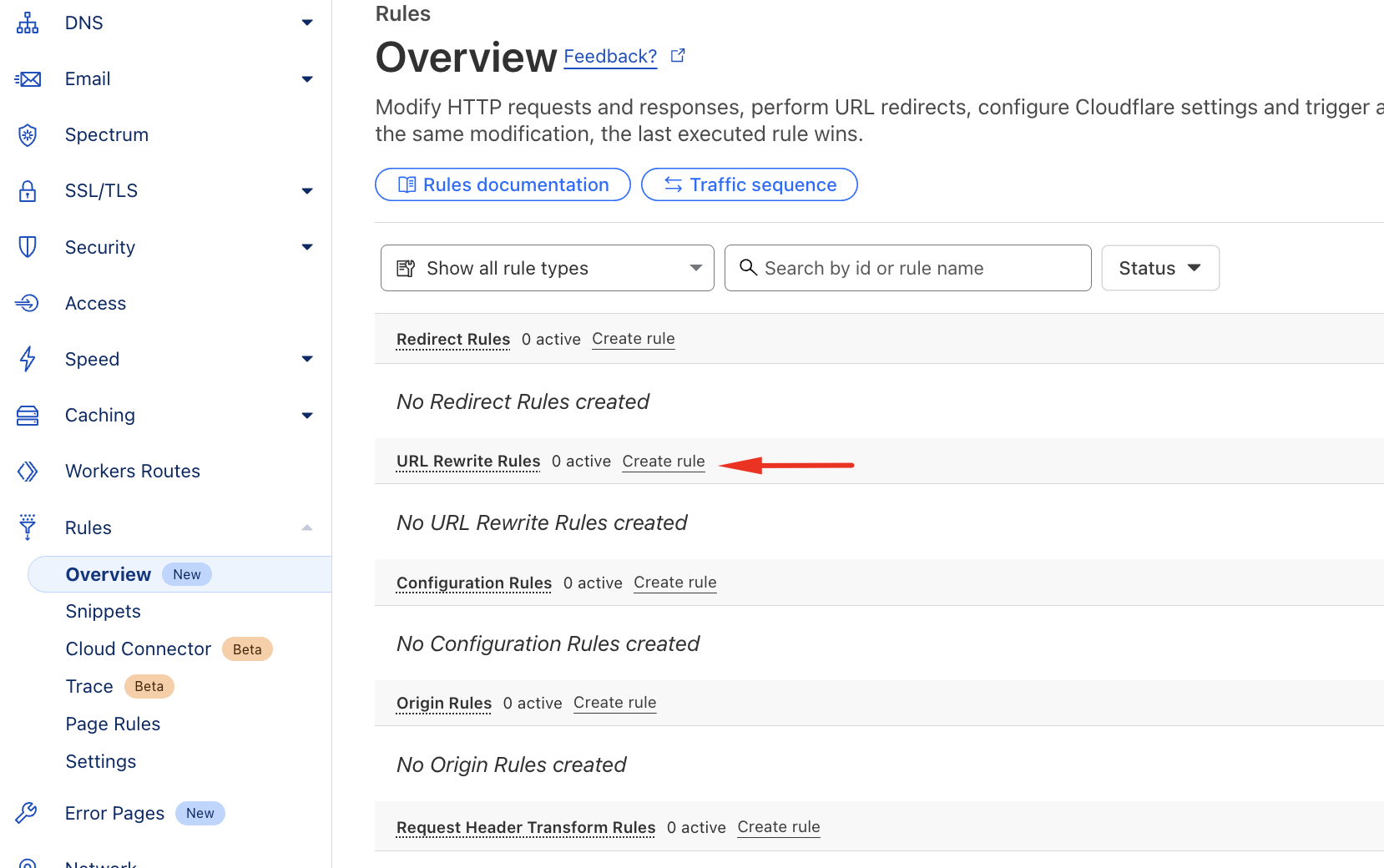
Create and deploy a new rule:
- Set Rule name to something descriptive, such as “Show M&K Page on Headset URL”
- Set If incoming requests match… to Custom filter expression
- Set the Field to URI Path
- Set the Operator to equals
- Set the Value to /product/generic-headset/
- Set the Then… criteria to…
- Rewrite to…
- Static
/product/generic-mouse-and-keyboard/
You configuration should look like this:
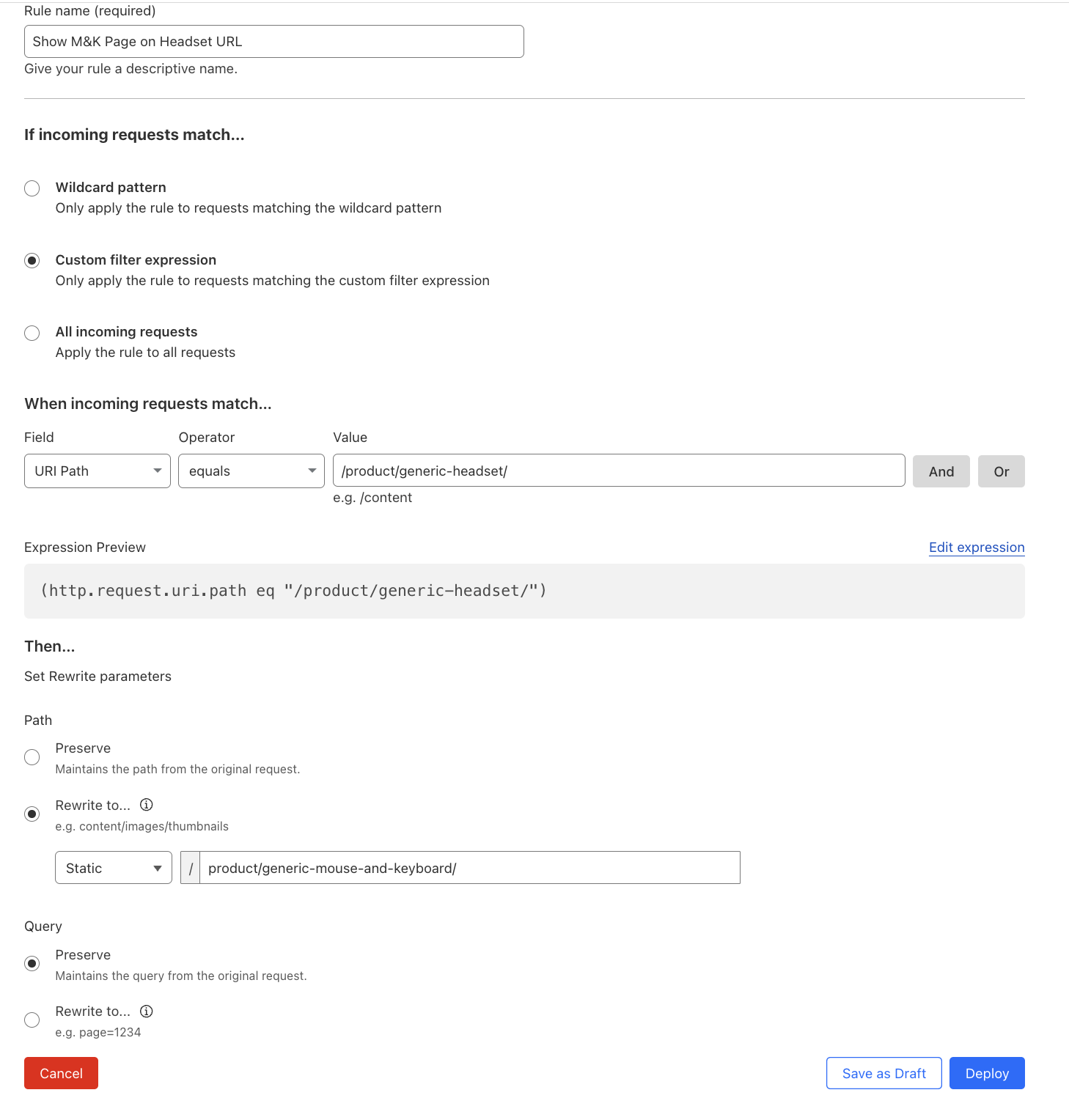
- Leave the other values as default (but feel free to explore them!) and click Deploy
Browse to /product/generic-headset/ on your Website
Notice that the Mouse and Keyboard page is displayed, despite the URL for headset being preserved. Also note that this isn't an HTTP redirect, just a different content returned for that URL.

🎯 Key Takeaways
- Cloudflare Rules let you change request/response behavior at the edge without modifying your origin server.
- Transform Rules allow you to add, remove, or rewrite headers and URLs for greater flexibility and security.
- Managed Transforms make it easy to enable common best practices (e.g., adding multiple security headers) with a single switch.
- URL Rewrite Rules let you serve content from different paths while keeping the original URL intact — useful for SEO, A/B testing, or user experience improvements.
- Migrating from Page Rules to the new Rules framework is recommended for future-proof configurations.
Use Rules incrementally: start with one change (like adding a security header), then expand to rewrites or more complex transforms.
This avoids confusion and makes troubleshooting easier if something doesn’t behave as expected.